
One of the cool new features of Grav 1.7 is the new bin/grav server command that now comes with support for Symfony's PHP-FPM-powered local webserver. While Grav has support PHP's native web server, the Symfony server is faster and even supports SSL out of the box.
To take advantage of this, you first need to install the Symfony CLI executable for your system.
Step 1 - Installation
We will assume you already have PHP installed and have some basic level of familiarity with the terminal on your platform of choice.
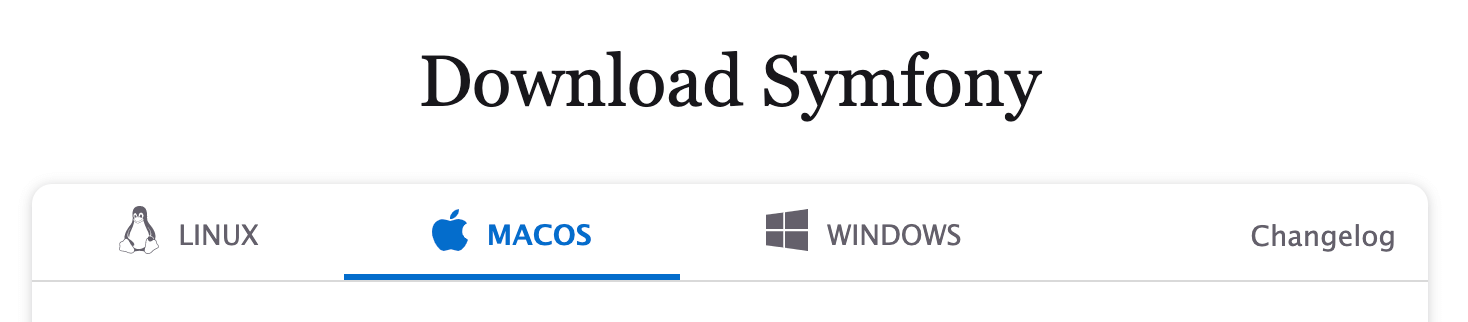
Visit the Symfony Download page, and click the tab that's suitable for your platform.
Mac Users
curl -sS https://get.symfony.com/cli/installer | bash
Next, you need to install the binary in your ~/.symfony/bin/ folder. You can add this path to your system path or create a symlink to the binary directory already in your path. On my system, I already have ~/bin in my path so that I can create a symlink there:
ln -s ~/.symfony/bin/symfony ~/bin/symfony
Feel free to symlink to /usr/local/bin/symfony if you use Brew, as that will already be in your path.
Important
You can use echo $PATH to output the current list of directories in your path.
Linux Users
wget https://get.symfony.com/cli/installer -O - | bash
Follow the same steps as above to symlink; on my test Raspberry Pi machine, I used:
sudo ln -s ~/.symfony/bin/symfony /usr/local/bin/symfony
Windows Users
Download the setup.exe file as linked to on the Symfony downloads page. This should set everything up for you.
Step 2 - SSL Cert
While it's not required, it's always a good idea to use SSL for your web connections, even locally. Luckily Symfony makes this easy with a single command:
symfony server:ca:install
You will probably be prompted to enter your system password to add the CA (Certificate Authority) to your system's trust store. If all goes well you should be greeted with:
[OK] The local Certificate Authority is installed and trusted
Tip
Once completed, you will never need to perform steps 1 and 2 again, once is enough! All you need to do from this point on is just follow step 3.
Step 3 - Grav Server Command
Now you can navigate to the root of your Grav installation in your terminal and then run:
bin/grav server
The Grav server command is smart enough to use the first available port over 8000. This means you can run this command on multiple Grav instances, and each site will be run on a different port. Neat huh?
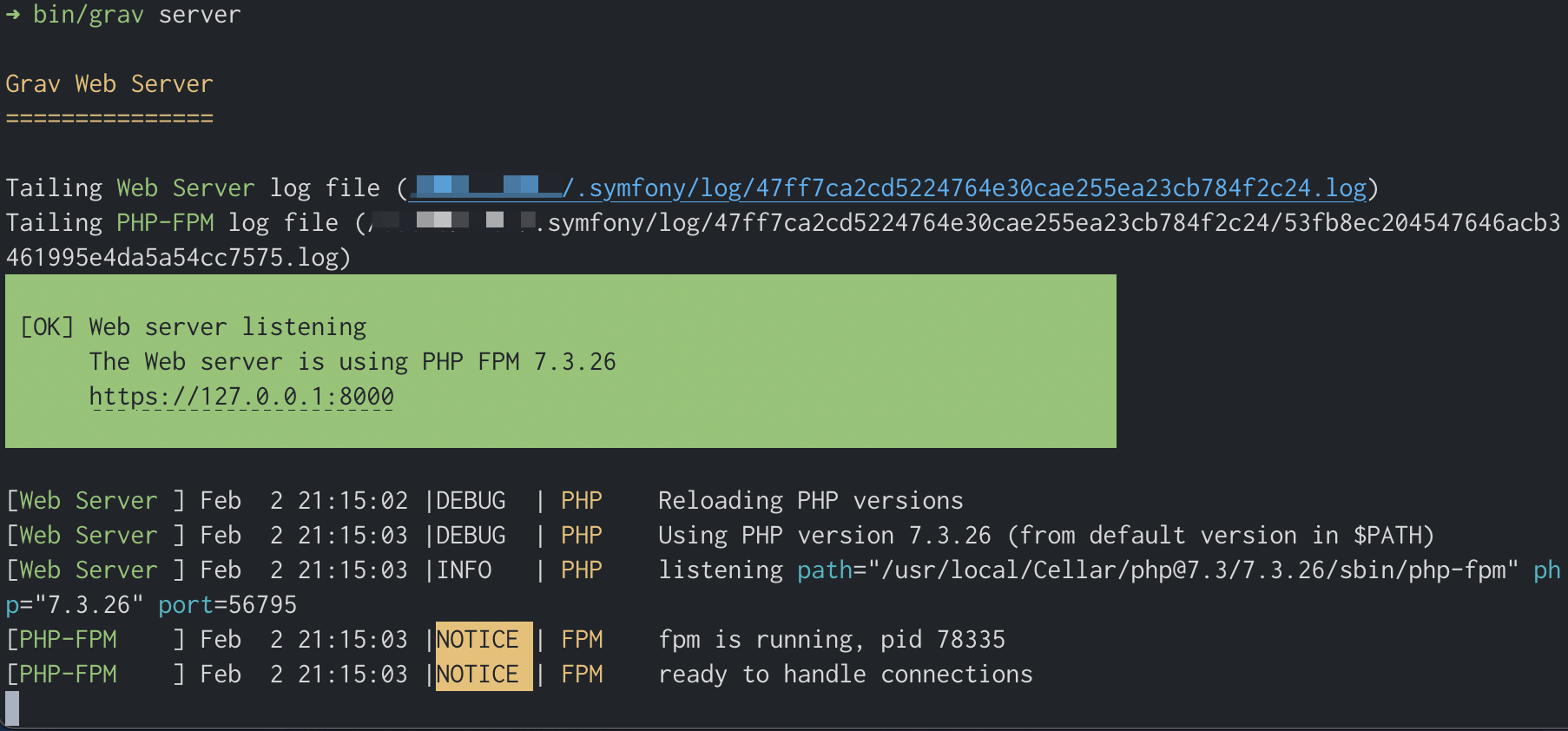
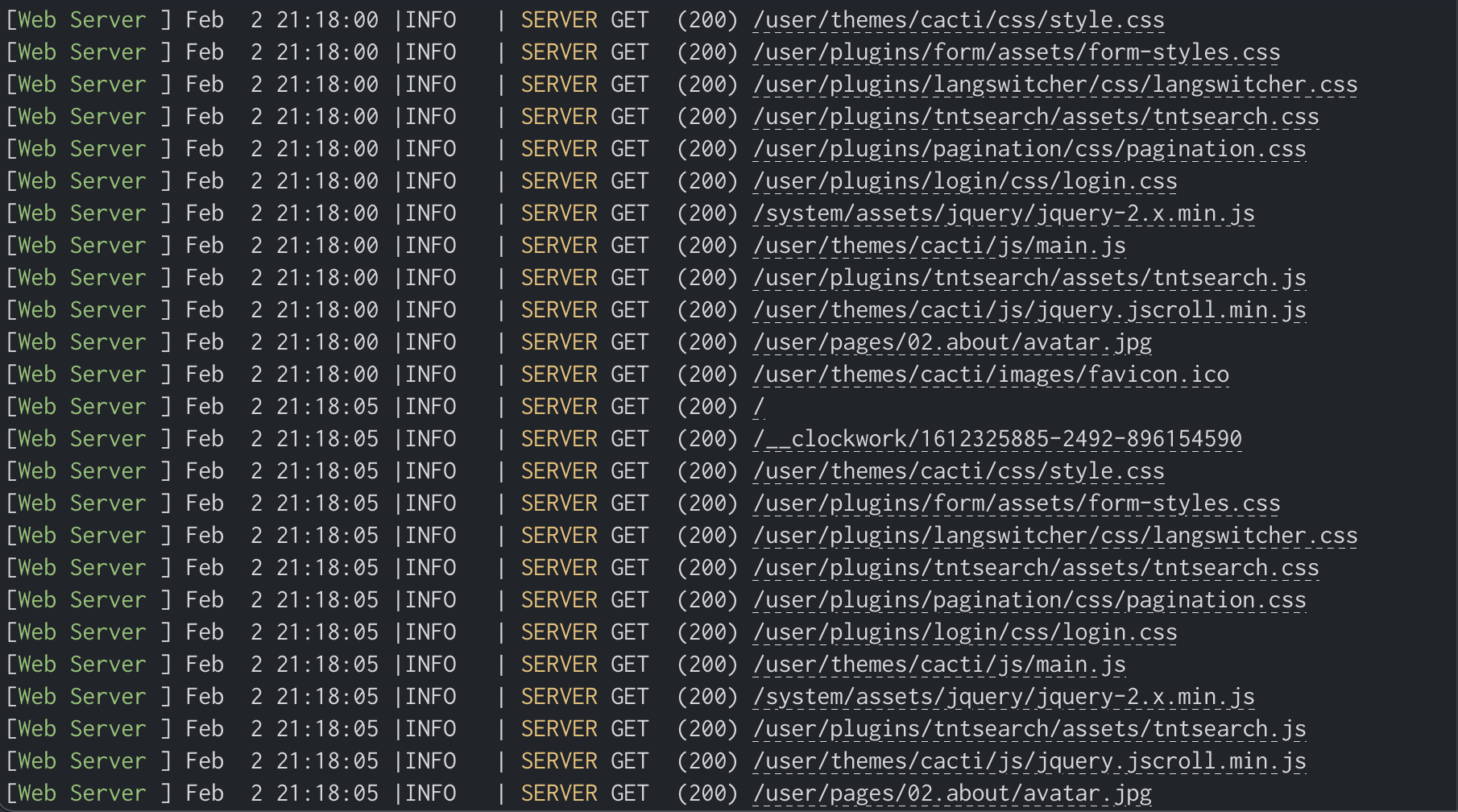
As you can see the server is up and running on 127.0.0.1 or localhost on port 8000, and notice that it's already using HTTPS so SSL is working. Just point your browser to that URL provided: https://127.0.0.1:8000, and you should see some requests display in your terminal:
That's it really, enjoy!