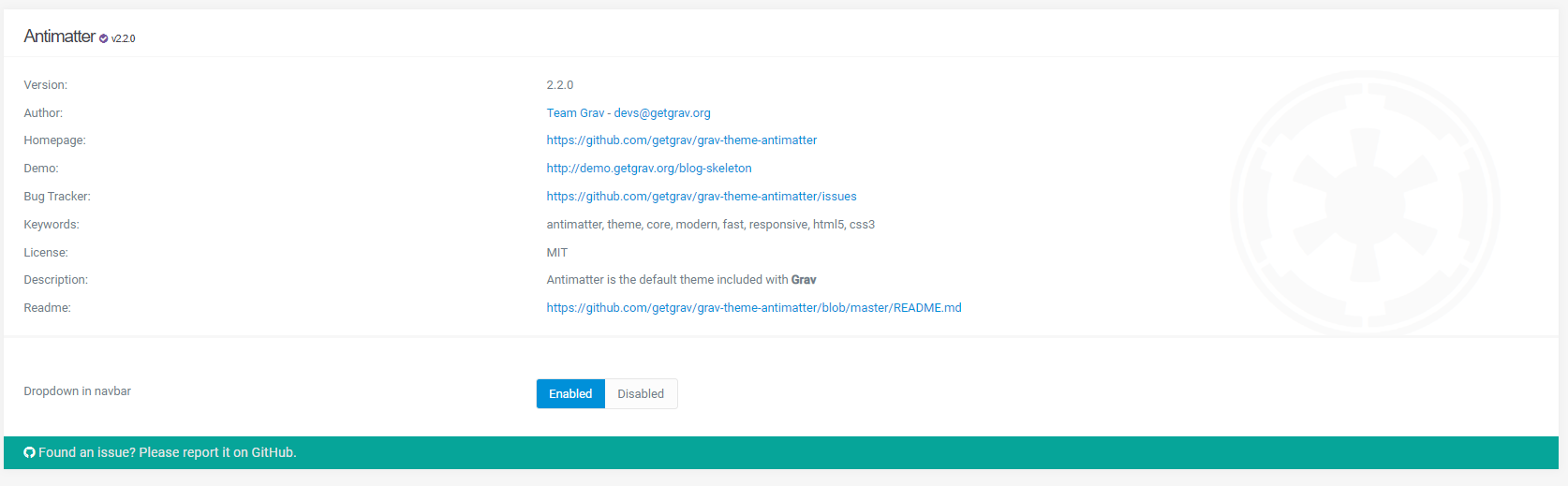
Im new to Grav CMS. I use Antimatter 2.2.0 and i want to add my custom Logo and Favicon to my Webside but i dont find the option in the Theme/Antimatter area to change it.
Im i stupid or is something wrong with my Grav/Antimatter and how could i fix it?
Update 2025-01-17: Made answer Grav 1.7.* compatible by adding | raw.
Default logo and favicon for Antimatter are located in folder '/user/themes/antimatter/images/'. The favicon is used by default, however, the logo is not. For this we have to change a template.
When making changes to a theme, it is advised to use an inherited theme. If you don't your changes will be overridden when a updated version of Antimatter arrives.
Steps:
Create inherited theme by following the steps in the docs.
In your inherited theme (let's assume it's called 'mytheme') create folder '/images' and drop your own logo and favicon there. Keep the names 'logo' and 'favicon' for simplicity.
Copy file '/user/themes/antimatter/templates/partials/base.html.twig' into folder '/user/themes/mytheme/templates/partials/'