Skip to content
Grav 2.0 is officially stable. Read the announcement →

Community guidelines

Please keep discussions civil and on-topic. Repeated violations may lead to a temporary ban.

Themes & Styling

Changing the header in the afterburner 2 theme

Solved by pamtbaau View solution

Started by Sebastian Gonzato 7 years ago · 4 replies · 1377 views
7 years ago

Hello everyone!

I followed the instructions in the grav documentation on how to customize your own theme using theme inheritance. However, I can't seem to figure out how to change the header on my website, which currently just has the Afterburner 2.0 logo. I would like to change this to my own logo.

A more general question as well - I expected things such as the header and footer to be customizable from the Grav Admin webpage. Is this the case and I was just being silly, or in general if you want to customize anything about your theme you need to get down and dirty with Twig? If the latter, does anyone have a better tactic than just searching through all the afterburner theme files and Ctrl+F ing until you find what you want to edit?

Here's my website: http://www.gobs.eu/

7 years ago

@gobs, Some themes (not Afterburner2 though) have a build in property that points to the logo file.

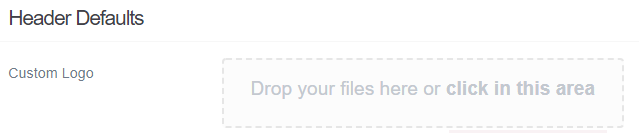
This property is then exposed in the Admin panel. When using theme Quark it will look as follows:
image|639x133

Yes. it may seem a burden to search through the files, but Grav is quite structured and themes and plugins follow that same structure. That makes them all quite similar. You will soon know where 'stuff' happens.

Ok, how to change the logo in Afterburner2?

If you open the developer tools of the browser, you will see that the logo is defined in '_header.scss' with the following css:

TXT
   #header #logo {
       background: url(../images/logo.png);
       ...etc.

What we need to do is to override that css in our own theme.

We need the following steps:

  1. In your childtheme, create the file 'user/theme/mytheme/css/custom.css', with the following content:
    CSS
    #header #logo {
    background: url(../images/logo.png);
    }
    

    Because 'custom.css' resides in your theme, the url '../images/logo.png' will now point to the logo inside your theme.

  2. Add your own logo.png to folder 'user/themes/mytheme/images/'
  3. The 'custom.css file' needs to be added to the page. Stylesheets are mostly added to a page by template 'base.html.twig'. In your case, that will be 'user/themes/afterburner2/templates/partials/base.html.twig'.

    Copy that template into the 'templates/partials' folder of your own theme.

  4. To add 'custom.css' to the page, add the following line to line 18:
    TWIG
    {% do assets.add('theme://css/custom.css') %}
    

Your folder structure should now look like:

TXT
/user/themes/mytheme/
├── ...
├── css
│   └── custom.css
├── images
│   └── logo.png
├── templates
    └── partials
        └── base.html.twig

If all went well, you will now have your own logo in the header of the page.

Hope this helps...

last edited 12/05/19 by pamtbaau
7 years ago

Thank you for the very detailed reply! That's cleared up a lot of questions for me.

I didn't quite get the header logo to work however. My custom.css file looks like this:

TXT
#header #logo {
        backgroud: url(../images/logo.png)
}
...

However I still get the afterburner logo in the header. Also, in the _header.scss file, I can only find

background: $logo-image;

and not

background: url(../images/logo.png);.

I guess $logo-image is defined somewhere else?

7 years ago

As you may have noticed, I misspelt background - now it works! Though now I have some sort of scaling issue - any idea how to fix that?

7 years ago Solution

@gobs,

scss:
In scss you can define variables ( $logo-image ) and reuse them at other places. In file '/user/themes/afterburner2/scss/configuration/template/_colors.scss', the variable$logo-images is defined as:

TXT
$logo-image:    url(../images/logo.png);

Size of logo:
When using a background image, by default, the element only shows the part of the image that fits the size of the element. The size of the anchor (<a>) is set to 255x50px. You logo has a size of 2028x1552px...

Options:

  • First, you should resize the logo using any image editor (e.g. Gimp) to the size you want your logo to display. Your users will be happy because that saves them a lot of bandwidth...
  • You could fiddle with the css properties of the background image to make the logo scale to fit the size given to the <a>.
    CSS
    #header #logo {
     background: url(../images/logo.png);
     background-repeat: no-repeat;
     background-size: contain;
     width: ...;
     height: ...;
    }
    

    The disadvantage of this is that the user has to fetch the entire image and the browser needs to scale it to fit the parent element.

    • You could use an <img src="..."> element instead of a background image.

Suggested topics

Topic Participants Replies Views Activity
Themes & Styling · by Pedro M, 2 months ago
4 196 2 months ago
Themes & Styling · by Ian, 2 months ago
3 92 2 months ago
Themes & Styling · by Norbert, 2 years ago
11 452 3 months ago
Themes & Styling · by Lukáš Findeis, 3 months ago
0 46 3 months ago
Themes & Styling · by Sebadamus, 4 months ago
5 126 3 months ago