Skip to content
Grav 2.0 is officially stable. Read the announcement →

Community guidelines

Please keep discussions civil and on-topic. Repeated violations may lead to a temporary ban.

Themes & Styling

cropZoom doesn't work with svg images

Solved by Pedro M View solution

Started by Pedro M 4 years ago · 4 replies · 565 views
4 years ago

Hello there

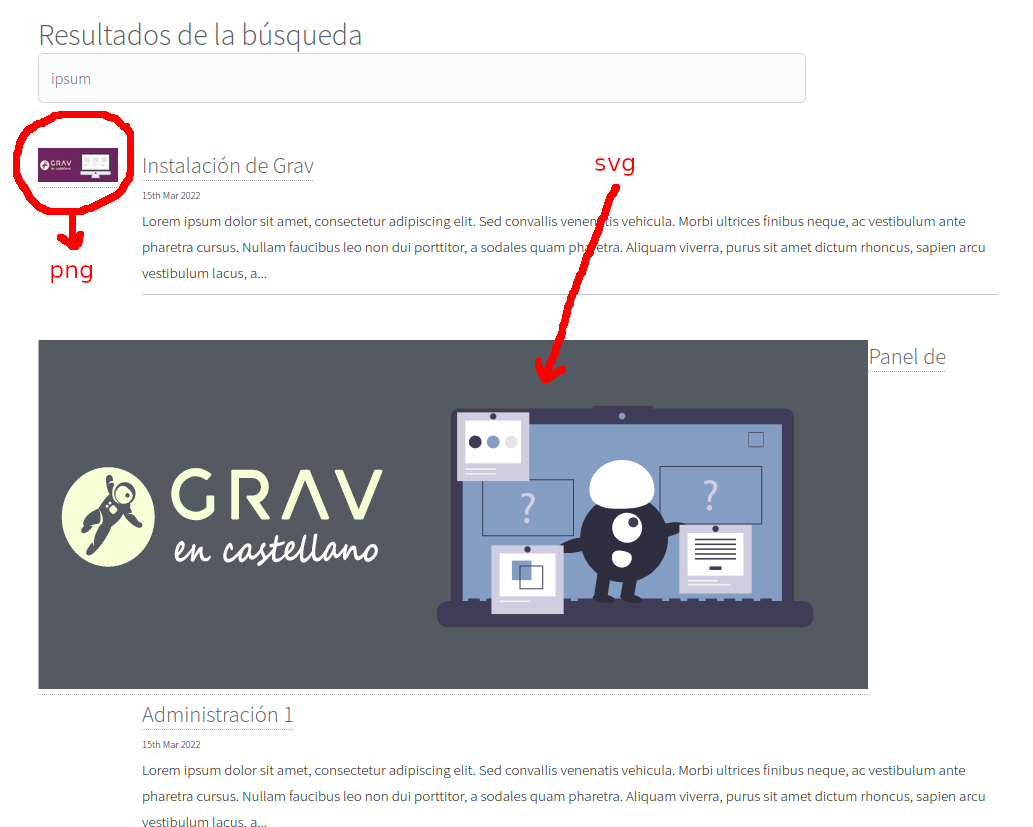
I'm working in several improvements to theme Telephasic (twig template for search results), and I can see the svg images doesn't work fine with cropZoom or cropResize filters. They don't change the size.

This is the code (it works fine with other image formats):

TWIG
{% set banner = page.media[page.header.primaryImage].cropZoom(100,100).loading('lazy').html('',page.title)|raw %}

Result sample (with cropResize):

search_results_svg|624x500

Is there anyway to get the svg images work with these filters?

Thanks in advance.

last edited 03/18/22 by Pedro M
4 years ago Solution

Hello.

I have found a workaround, until resizing of svg images is supported by cropZoom or cropResize filters.

In the simplesearch_item.html.twig file, I define the banner variable as:

TWIG
{% set banner = page.media[page.header.primaryImage].loading('lazy').html(page.title,page.title)|raw %}

{% if banner %}
<div class="search-image">
    <a href="{{ page.url }}">{{ banner }}</a>
</div>
{% endif %}

(no cropZoom or cropResize filters)

In the custom.css file, I have made the following modifications (defining the size in css):

CSS
.search-row {
    display: flex;
    align-items: center;

}
.search-image img {
    overflow:hidden;
    width: 100px;
    height: 100px;
    object-fit: cover;
    object position: 0 100%;
}
@media only all and (max-width: 47.938em) {
    .search-image img {
      display:none; } }
.search-item {
margin-left: 30px;
margin-bottom: 50px;
}

With this solution I can show the thumbnail image in search results page.

last edited 03/18/22 by Pedro M
4 years ago

I don't think SVG will ever be supported. It's vector graphics, not raster image. You can't just crop SVG, you have to completely change <path/> and/or other tags in SVG. SVG is not pixel based media. If you open SVG with any text editor, you might get an idea what I'm talking about
👍 2
4 years ago

I know this @Karmalakas.

So the solution in this case was to wrap the svg image in div tags, and apply the size of that div tag in the style sheet.

👍 1
4 years ago

Yes, resizing is easy. Cropping - another story

Suggested topics

Topic Participants Replies Views Activity
Themes & Styling · by Pedro M, 2 months ago
4 198 2 months ago
Themes & Styling · by Ian, 2 months ago
3 94 2 months ago
Themes & Styling · by Norbert, 2 years ago
11 455 3 months ago
Themes & Styling · by Lukáš Findeis, 3 months ago
0 48 3 months ago
Themes & Styling · by Sebadamus, 4 months ago
5 128 3 months ago