Hi. This is my first post.
I have installed GRAV and I created a small website to test it. I use the default Quark theme, which shows 4 different layouts in the screenshots. But I have failed to reproduce anything but the first. I switch the page type to "Blog", the photo background appears, and then the text is just overlaid on top.
http://aethse.ha.uth.gr/
Are there instructions for how to change the appearence? I suppose there are CSS classes that will do the trick, but I although I tried the ones in the documentation, I did not manage to change the appearence to the "Say hello wtih Grav" look.
Solved by pamtbaau View solution
@TGD,
I use the default Quark theme, which shows 4 different layouts in the screenshots.
Not sure what you mean with "screenshots".
I switch the page type to “Blog”, the photo background appears, and then the text is just overlaid on top.
Do you mean you changed the name of file user/pages/01.home/default.md into user/pages/01.home/blog.md? That won't work...
I suggest you take a step back and start reading the documentation.
I am sorry I was not clear. This is the page from:
https://github.com/getgrav/grav-theme-quark/blob/master/README.md
What I would like is a tutorial that will lead me from the first layout on the left to the more advance layout to the right. I tried the CSS parameters mentioned in the page, but at the most I got something resembling layout #2. Is the necessary CSS included in the quark theme? Is there an actual page of this layout so I can study the way it is built?
@TGD, Ok, I now see what you mean with screenshots...
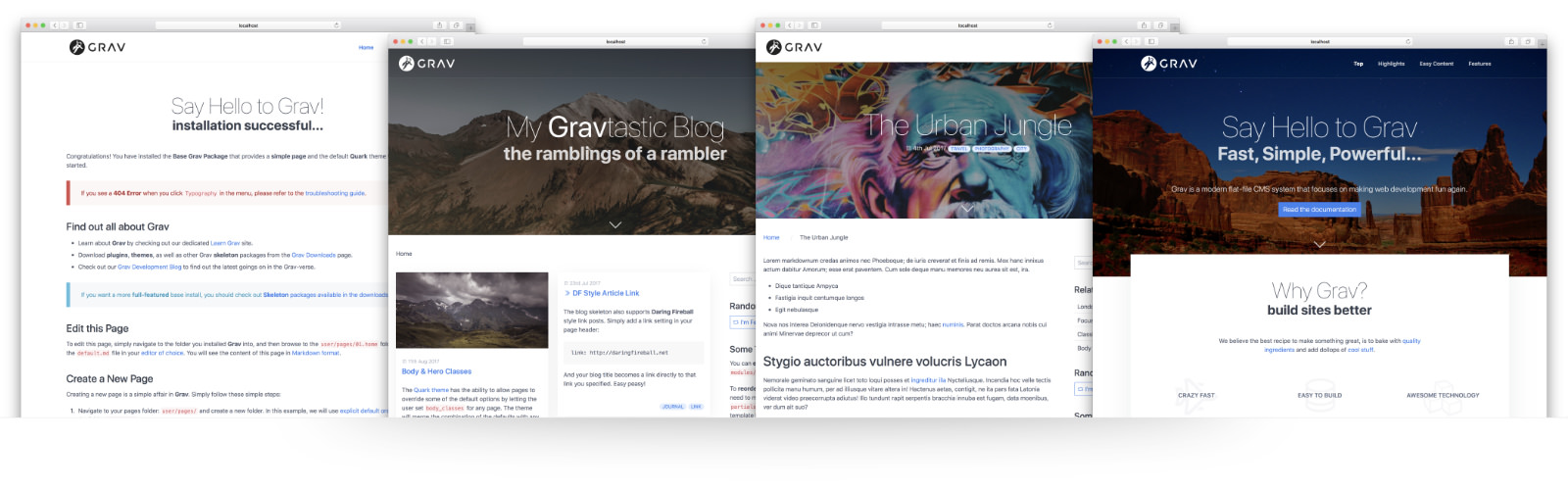
- The first is a default page.
It is used for the default pages available in a Grav installation. - This is blog list page show a list of blog items
To see an example in action, you should download the Blog Site skeleton. - This a a single blog item
Also part of the Blog skeleton - This is a one page example
A sample is available in the One-Page Site skeleton.
Be aware that templates are not layouts. Templates contain logic that needs information from the page for which it is being used. For more understanding, please read the documentation as mentioned before.
last edited 05/03/23 by pamtbaau
Thank you. I feel more confident now!
Log in to reply.
Suggested topics
| Topic | Participants | Replies | Views | Activity |
|---|---|---|---|---|
| 1 | 29 | 2 hours ago | ||
| 3 | 480 | 1 month ago | ||
| 5 | 481 | 2 months ago | ||
| 1 | 460 | 2 months ago | ||
| 1 | 490 | 2 months ago |