Skip to content
Grav 2.0 is officially stable. Read the announcement →

Community guidelines

Please keep discussions civil and on-topic. Repeated violations may lead to a temporary ban.

Content & Markdown

Best way to make use of the lightbox + center images

Solved by pamtbaau View solution

Started by AquaL1te 5 years ago · 2 replies · 1352 views
5 years ago

Hi,

The lightbox is really cool and simple to use. But I noticed a few minor flaws in formatting. I solved that with a custom template. But I wonder if this can be done better. Here is my website with the custom template I use now.

I'll start with the minor flaws I see when using the following:

MARKDOWN
[center]
![Kleding](kleding.jpg?lightbox&resize=300)
![Podcast](podcast.jpg?lightbox&resize=300)
![Meeting](orientatie-meeting.jpg?lightbox&resize=300)
![ZDay](zday.jpg?lightbox&resize=300)
![Mengpaneel](mengpaneel.jpg?lightbox&resize=300)
![Blender](blender.jpg?lightbox&resize=300)
[/center]

This generates the following output, in the screenshot below the top 6 images are generated by the code above, the 6 pictures below that are made by my custom template:
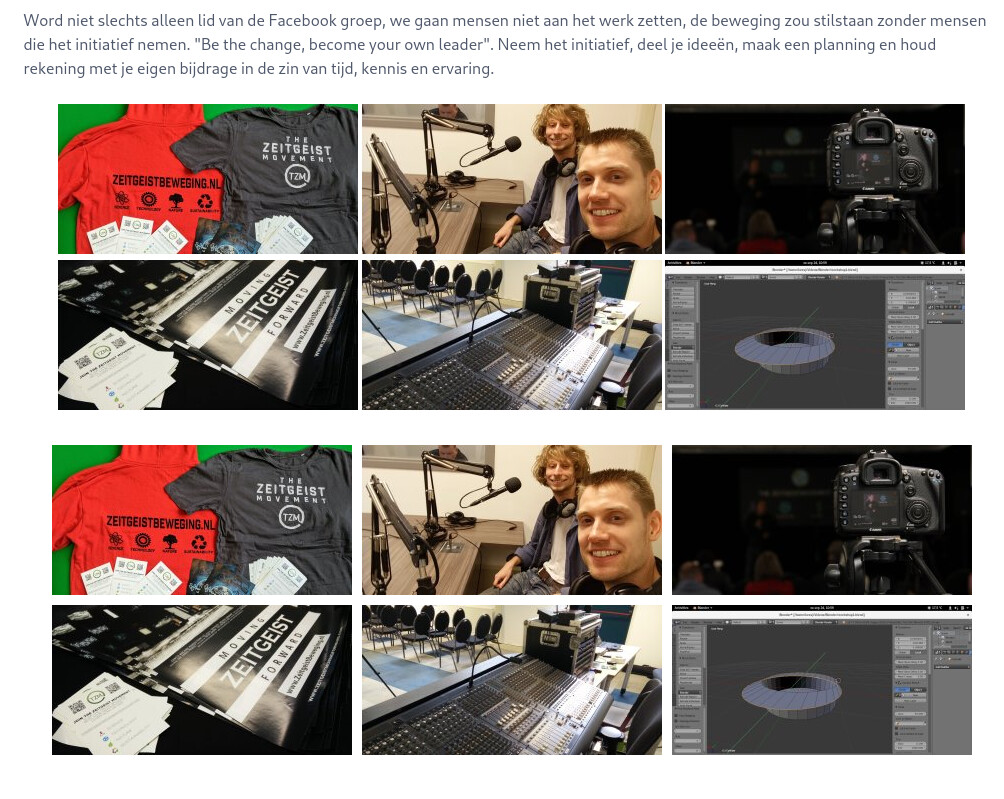
Screenshot from 2021-01-29 08-08-13|628x500, 100%

As you can see, the spacing between the top 6 images images are not even. Why this happens is unclear to me. The center shortcode has no effect on this in a positive or negative way.

So I created a custom template which generates the bottom 6 images:

TWIG
{% extends 'partials/base.html.twig' %}

{% block content %}
    {{ page.content|raw }}
    <section id="custom-gallery" class="{{ grid_size }}">
        <div class="images">
        {% for image in page.media.images %}
        <a rel="lightbox" href="{{ image.url|e }}">
          <img src="{{ image.cropResize(300).url|e }}" alt="{{ image.basename|e|title }}"/>
        </a>
        {% endfor %}
        </div>
    </section>
{% endblock %}

Where I also added this CSS:

CSS
/* custom-gallery template */
#custom-gallery .images {
    display: flex;
    flex-wrap: wrap;
    justify-content: center;
}
#custom-gallery .images a {
    display: inline-block;
}
#custom-gallery .images img {
    display: block;
    margin: 5px;
}

Adding the CSS section custom-gallery fixes the formatting issues. So this leaves me with the following questions:

  • Is this the "Grav way" of solving this formatting issue? I could've also added the div in the markdown of course and add the rest of the HTML. But I thought a template would be better since it would keep maintenance in a central place.
  • Is there a better way to place a div in markdown?
  • Are there improvements for my template? E.g. am I missing some tricks to simplify this?
  • Any other improvement suggestions?
5 years ago Solution

@AquaL1te

  • Why?
    From stackoverflow:

    The image is display: inline so it is treated like a character and sits on the baseline. The gap is caused by the space provided for the descender (which you find on letters like j, g, y and p).
    Adjust the vertical-align with CSS: img{vertical-align: bottom}

  • 'Grav way'
    I don't think there is a best 'Grav way'. Grav often offers multiple ways...
    If the images are part of the content, you have no other choice than adding code (HTML, shortcode, Twig) to Markdown. Else, I would use a template (thats where templates are for).
  • Improvements
    Not sure if it is an improvement... But an alternative to generating image elements could be:
    TWIG
    {{ image.cropResize(300).html('', image.basename|title) | raw }}
    
  • Using Twig inside page.
    Template 'partials/centered-images.html.twig':

    TWIG
    <section id="custom-gallery" class="{{ grid_size }}">
    <div class="images">
    {% for image in page.media.images %}
    <a rel="lightbox" href="{{ image.url|e }}">
      {{ image.cropResize(300).html('', image.basename|title) | raw }}
    </a>
    {% endfor %}
    </div>
    </section>
    

    Page '03.images/default.md'

    TWIG
    ---
    title: Images
    process:
    twig: true
    ---
    # Mardown before
    
    {% include 'partials/centered-images.html.twig' %}
    
    # Markdown after
    

Note:
Don't change/add templates inside a installed theme, but instead in an inherited theme. If not, all changes will be lost when a new version of the theme gets installed.

👍 1
last edited 01/29/21 by pamtbaau
5 years ago

Thanks! I'm using partials more now. I was using specific templates for that, which is not very flexible. Thanks for the reminder that partials exist and can easily be used.

Suggested topics

Topic Participants Replies Views Activity
Content & Markdown · by Jochen, 8 months ago
6 94 8 months ago
Content & Markdown · by Ton Haarmans, 1 year ago
10 184 1 year ago
Content & Markdown · by Jan L'Am, 1 year ago
4 146 1 year ago
Content & Markdown · by Leonardo, 1 year ago
3 60 1 year ago
Content & Markdown · by belthasar, 1 year ago
4 254 1 year ago